
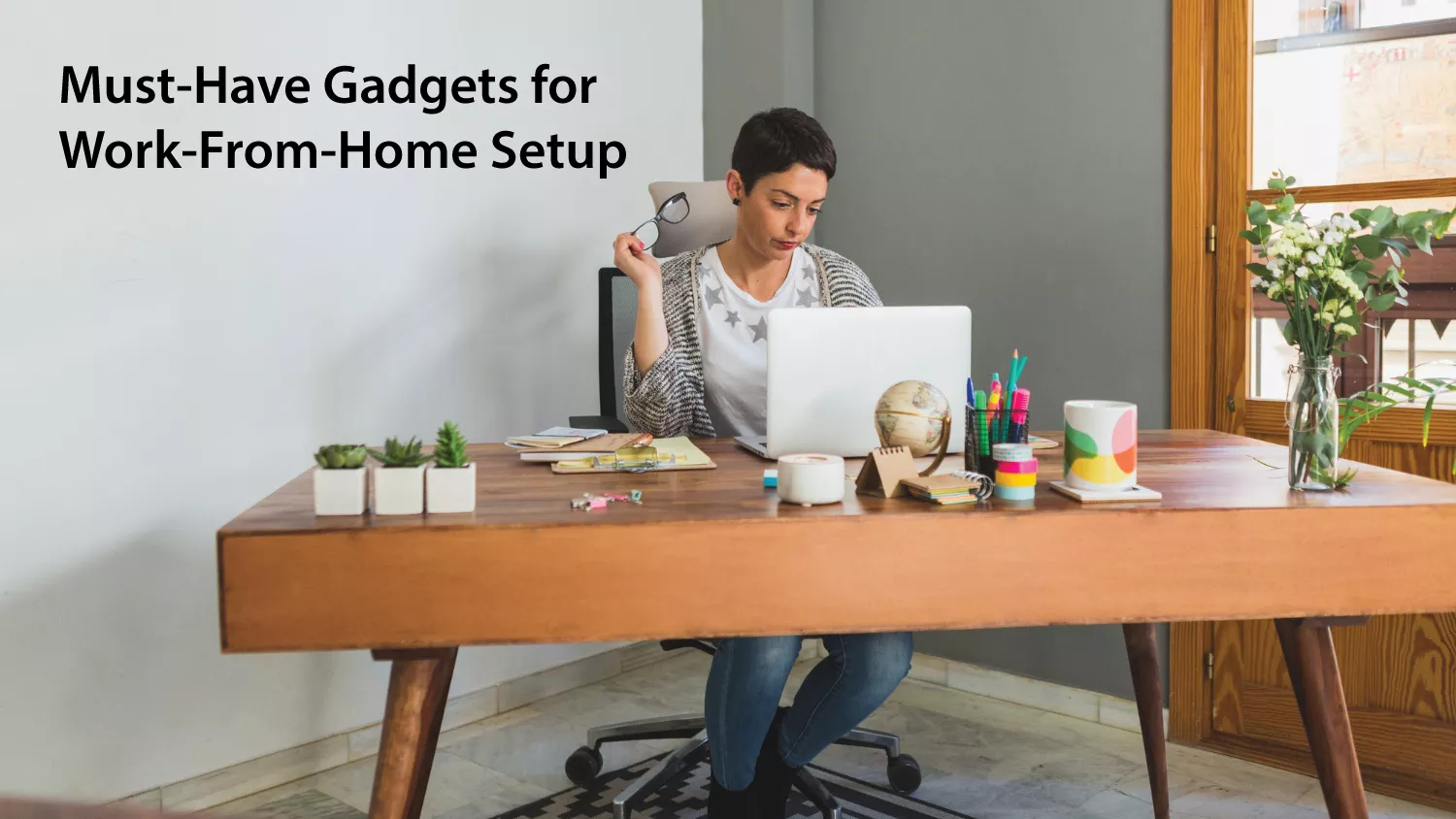
Why the right gadgets matter
Working from home is no longer temporary – it’s a long-term work mode for millions. The devices and accessories you pick don’t just make tasks easier; they reduce fatigue, improve call quality, and help separate “work” from “home” in your brain. Investing thoughtfully in a few high-impact gadgets yields daily returns: fewer interruptions, clearer meetings, and more comfortable long work sessions. Recent product cycles and CES launches show vendors doubling down on smarter, AI-enabled peripherals and ergonomic solutions – meaning the right gear today will still feel modern tomorrow.
Core essentials (must-haves)
Headphones or headset with Active Noise Cancellation (ANC)
A good ANC headset is the single most valuable item for many remote workers. It blocks noisy roommates, construction, or street noise and lets you focus during deep work or record clean audio for calls and videos. Look for comfortable pads, long battery life, and a reliable mic (or pair with a desk mic). Brands and models vary, but the principle is constant: noise control = focus.
Webcam (1080p or 4K)
Video calls remain central to remote collaboration. A crisp webcam – ideally 1080p at 30fps or higher (4K if you present polished video or stream) – makes you look professional and improves meeting engagement. Modern webcams now include auto-framing, AI face exposure, and HDR tweaks; if you spend hours on video, upgrade to a top-tier option. Reviews and roundups consistently highlight a few standout business webcams for 2025.
Microphone or speakerphone
Even the best webcam can’t save poor audio. A USB condenser mic, dynamic broadcast mic, or purpose-built speakerphone dramatically improves intelligibility in meetings and recordings. If you share space or work with others nearby, choose directional mics or cardioid patterns to reduce room noise.
Monitor(s) and monitor stands
A single large monitor or a dual-monitor setup speeds workflows: more screen real estate for code, documents, and video calls. Consider 27″ 1440p as a sweet spot for clarity and desk space. Pair monitors with an adjustable arm to improve ergonomics and maximize desk space.
Keyboard & mouse – prioritize ergonomics
Mechanical or scissor keyboards with good key travel make typing enjoyable; split or low-profile ergonomic keyboards reduce wrist strain. Choose a mouse or trackpad that fits your hand and use wrist rests for long sessions.
Docking station / USB-C hub
If you use a laptop, a good dock transforms it into a full workstation: power delivery, multiple displays, Ethernet, and extra ports. It reduces daily plugging/unplugging and keeps the desk tidy.
Comfort & ergonomics
Adjustable standing desk
Sitting all day is one of the biggest health risks for knowledge workers. A height-adjustable desk (electric lifts are worth the price) allows you to alternate between sitting and standing, improving posture and circulation. Flexible models with memory presets make transitions smooth.
Ergonomic office chair
A chair with lumbar support, adjustable armrests, and a flexible back frame matters more than flashy RGB accessories. Long-term comfort saves your back and improves productivity; industry picks and long-term tests favor a handful of chairs for sustained support.
Wrist rests, footrests & laptop risers
Small accessories make big differences. A laptop riser combined with an external keyboard keeps the top of your screen at eye level. A footrest and a supportive wrist rest prevent strain during multi-hour sessions.
Power, connectivity & desk management
Fast Wi-Fi and mesh systems
A stable internet connection is non-negotiable. If your home has dead spots, a mesh Wi-Fi system or an access point will eliminate dropped calls and slow uploads – especially important if you use cloud storage or video conferencing every day.
Surge protectors and small UPS (battery backup)
Protect your investment and keep short interruptions from killing a meeting or corrupting files. A UPS with enough runtime to save work and shut down safely is a small but critical insurance policy.
Cable management and smart plugs
Cable clips, under-desk trays, and velcro ties tidy the workspace. Smart plugs let you automate chargers and lamps – helpful if you want to schedule “work mode” in the evenings. Recent reviews emphasize smart plugs with Matter support for cross-platform compatibility.
Lighting, ambience & background tools
Key lights & soft fill lighting
Good lighting is as important as a good webcam. A ring light or small key light at eye level removes shadows, making you look awake and professional on calls. Add a soft fill or background light for a layered, broadcast-style look.
Background & green screen options
If your room is cluttered, use a tidy backdrop, bookshelf, or a retractable green screen for a clean virtual background. Many creators now use subtle decor (plants, art) to keep the view professional but personal.
Acoustic panels & room treatment
If your room echoes, simple acoustic panels, rugs, or bookcases reduce reverb and make audio clearer during calls or recordings.
Productivity boosters & niche gadgets
External SSDs & backup solutions
Fast external SSDs give the speed and portability you need for large projects – and automated backups (cloud and local) protect against data loss.
Portable second screens, tablet stands
A portable USB-C monitor or a tablet used as a second display can turn any space into a productive workstation. Great for quick reference, chat windows, or monitoring dashboards.
Smart notebooks, pen scanners, and digitizers
If you brainstorm on paper, digitizers (or smart notebooks that sync to the cloud) convert handwriting into searchable notes – great for async workflows and record-keeping.
How to prioritize purchases (budget vs. long-term investment)
Not all gadgets are equal. Prioritize by impact:
- Connectivity & power: Wi-Fi, UPS, surge protection.
- Audio & video: Headset + mic + webcam.
- Ergonomics: Chair + desk + monitor height.
- Workflow time-savers: Dock, SSD, dual monitors, lighting.
- Nice-to-haves: Smart plugs, smart lighting, decorative items.
If budget is tight, start with good audio (headset/mic) and a laptop riser + external keyboard – then upgrade monitors and desk/chair as funds allow. For frequent callers or creators, invest early in a high-quality webcam and microphone.
Quick setup checklist (printable)
- Stable internet / mesh Wi-Fi
- Surge protector + small UPS
- Headset with ANC or quality headphones + mic
- Webcam (1080p min)
- External monitor(s) + adjustable arm
- Ergonomic chair + standing desk (or desk converter)
- Docking station / USB-C hub
- Key light + soft background lighting
- Cable management solution
- External SSD / cloud backup system
Final thoughts
Work-from-home setups are personal and should evolve as your needs change. Start with the high-impact essentials (audio, video, ergonomics, and connectivity), then layer in productivity and comfort gadgets. Tech cycles continue to deliver smarter, more integrated accessories – from AI-powered webcams to Matter-compatible smart plugs – so plan upgrades around real pain points rather than shiny new releases. For up-to-date gear guides and hands-on reviews to inform your next purchase, check back with Gadget Radar Pro – we test, compare, and recommend gear that lasts.
FAQs
Do I need a 4K webcam for work calls?
A 4K webcam gives exceptional clarity but isn’t necessary for everyday meetings. 1080p webcams with good low-light performance and auto-exposure are sufficient for most professionals. Choose 4K only if you create polished video content or present visually detailed materials often.
Are wireless mice and keyboards reliable for long work sessions?
Yes – modern wireless peripherals use low-latency protocols and long battery lives. If you worry about latency for gaming or precision tasks, look for options with a dedicated USB receiver or Bluetooth with high-performance modes.
How much should I spend on an office chair?
Think of a chair as an investment in your health. Mid-range ergonomic chairs (often a few hundred dollars) generally provide essential adjustments; premium chairs cost more but offer advanced customization and longer warranties. Try before you buy if possible.
Do smart plugs pose a security risk?
Like any connected device, choose reputable brands and keep firmware updated. Using a separate IoT network or enabling network segmentation on your router reduces exposure.
What’s the most cost-effective way to improve call quality?
Start with a dedicated microphone (USB dynamic or condenser) or a headset with a good mic. Next, treat the acoustics of your room (rugs, curtains, panels) to reduce echo.
Are docking stations necessary if my laptop has enough ports?
Not strictly necessary, but a dock simplifies connections – one cable to power and peripherals – and future-proofs your setup if you buy a new laptop.


